
OpenClaw Engineering, Chapter 3: Deployment and Environment Setup
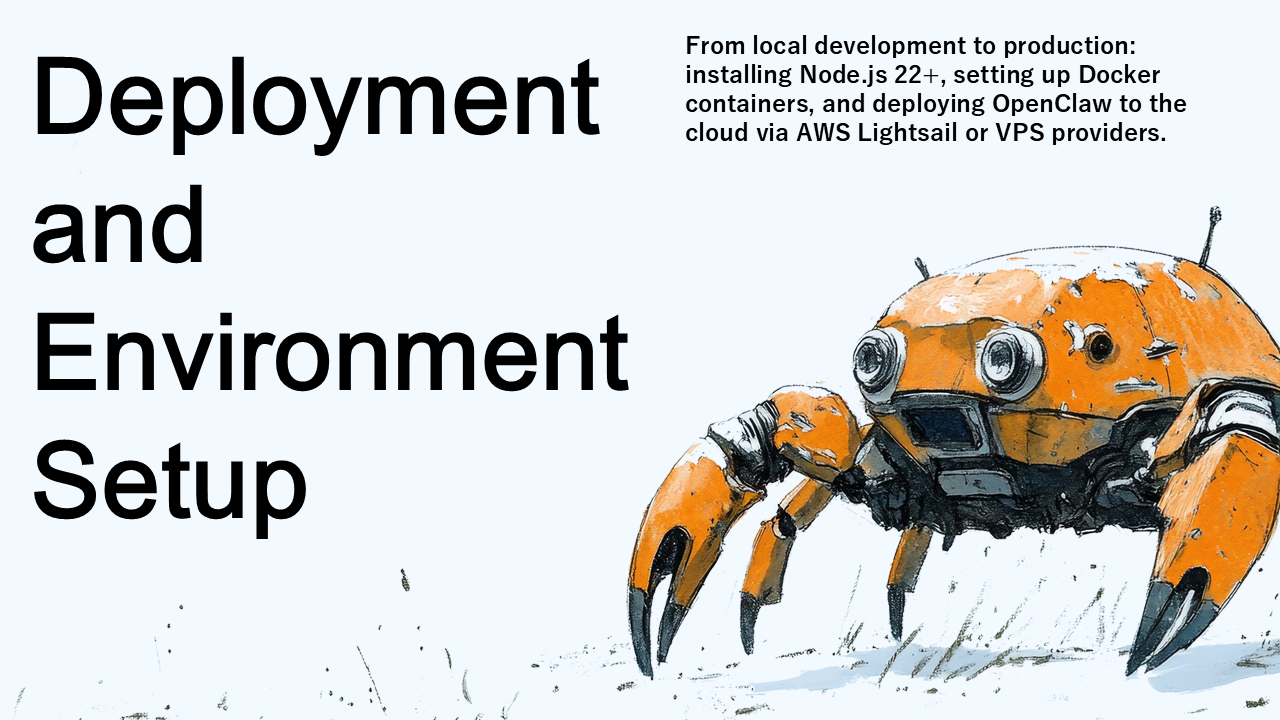
We've covered the theory. Now let's build something real. This chapter walks you through getting OpenClaw running on your machine and in the cloud. We'll start with Node.js (the runtime that powers OpenClaw), move through Docker (for isolation and portability), and finish with cloud deployment. Each step builds on the previous one. By the end, you'll have a functioning gateway running 24/7.
Node.js 22+ and the runtime foundation
OpenClaw runs on Node.js, a JavaScript runtime that lets you run server-side code. We require version 22 or later, which includes native Fetch API support (for making HTTP requests), better WebSocket handling (for real-time connections), and improved ES module support. If you're on an older version, upgrade now. The performance improvements alone justify it.
Check what you have by running node --version. If you see v22.0.0 or higher, you're good. If not, install or upgrade.
- macOS: If you have Homebrew, run
brew install node@22 - Ubuntu/Debian:
sudo apt-get install nodejs npm - Windows: Download the installer from nodejs.org and choose both Node.js and npm
After installation, verify both Node and npm with node --version and npm --version. You should see version numbers. If npm doesn't work, you might need to add its directory to your PATH. The simplest long-term solution: use nvm (Node Version Manager). On macOS or Linux, run the nvm installation script, then nvm install 22. This avoids permission headaches and lets you manage multiple Node versions.
Before moving forward, check your system: (1) Node.js 22+ installed? (2) npm installed? (3) At least 2 GB disk space? (4) Stable internet? (5) Write permissions in your home directory? If all five are true, you're ready. If not, fix them now—it's much easier than debugging installation problems later.
Global npm installation and the CLI
With Node.js installed, install OpenClaw globally. Open a terminal and run npm install -g openclaw. The -g flag means "global"—you're installing it system-wide, not in a specific folder. npm will download OpenClaw, all its dependencies, and set up the openclaw command.
Verify it worked by running openclaw --version. You should see a version number. If you see "command not found," npm's global bin directory isn't in your PATH. Run npm config get prefix to see where npm installs globals, then add that directory's bin folder to your PATH.
Now explore the CLI by running openclaw help. You'll see commands like onboard, gateway, doctor, and config. Every command supports --help, which is your best friend when you're learning. The CLI is also idempotent: running the same command multiple times won't break anything. This is intentional—real systems are messy, and we designed the CLI to forgive accidents.
Important concept: the CLI is a client that communicates with the OpenClaw gateway process. When you run openclaw gateway, you start a long-running server on port 3000. Other CLI commands connect to this server. This means you can run the gateway once and then use multiple terminal windows to issue commands. It also means you can automate and script against a single gateway.
Docker: sandboxing and isolation
Docker packages your application and all its dependencies into a sealed, portable container. Think of it like a shipping container for software. Inside is OpenClaw, Node.js, and everything else. Outside is the host system. They're isolated, which means if something breaks inside the container, it can't affect your machine. This is fantastic for security, consistency, and scaling.
Install Docker on your system: macOS and Windows get Docker Desktop (which includes everything). Linux users install via their package manager: sudo apt-get install docker.io on Ubuntu/Debian. After installation, run docker --version and docker run hello-world. Both should succeed.
To run OpenClaw in Docker, pull the pre-built image:
docker pull openclaw/gateway:latest
Then run it:
docker run --name openclaw-agent -p 3000:3000 -v ~/.openclaw:/root/.openclaw -e OPENCLAW_LOG_LEVEL=info -e ANTHROPIC_API_KEY=$ANTHROPIC_API_KEY openclaw/gateway:latest
Let's break this down. --name openclaw-agent gives the container a friendly name. -p 3000:3000 maps port 3000 inside the container to port 3000 on your machine. -v ~/.openclaw:/root/.openclaw mounts your configuration directory so it persists even if you delete the container. -e sets environment variables inside the container. The $ANTHROPIC_API_KEY substitutes your actual API key from your shell.
For more complex setups, use Docker Compose. Create a docker-compose.yml file that defines your services, volumes, environment variables, and networks. Then start everything with docker-compose up -d. Stop with docker-compose down. This approach scales cleanly: if you ever want to add a database, a message queue, or other services, they all live in the same compose file.
Use alpine base images (like node:22-alpine) instead of full images. Alpine is minimal, keeping your container size to 50-100 MB instead of 500+ MB. Smaller images mean faster downloads and deployments. Also always include a HEALTHCHECK in your Dockerfile so the system can verify your application is actually running.
Cloud deployment: from laptop to always-on
Running OpenClaw on your laptop is fine for development. For production, you need a machine that's always on, accessible from anywhere, and can handle real traffic. We'll cover AWS Lightsail (simple, affordable) and generic VPS providers (DigitalOcean, Linode, Vultr). The setup is nearly identical across providers.
For Lightsail: go to aws.amazon.com/lightsail, create an instance, choose Ubuntu 22.04 LTS, and pick a plan ($5-20/month depending on your needs). For a small production setup, the $15/month plan (2 GB RAM, 1 vCPU, 60 GB SSD) is solid. Add a static IP (essential for stable communication) and open ports 80, 443, and 3000 in the firewall.
Once your instance is running, connect via SSH. Lightsail provides an in-browser terminal, or you can SSH locally with your private key. Then update the system and install Node.js:
sudo apt-get update && sudo apt-get upgrade -y
curl -sL https://deb.nodesource.com/setup_22.x | sudo -E bash -
sudo apt-get install -y nodejs docker.io docker-compose
Create a deployment directory, set up your docker-compose.yml, create a .env file with your secrets (API keys, bot tokens), and start the container:
docker-compose up -d
For production, run OpenClaw as a systemd service so it automatically starts on boot and restarts if it crashes. Create /etc/systemd/system/openclaw.service with the appropriate configuration, then sudo systemctl enable openclaw and sudo systemctl start openclaw. Now OpenClaw will survive server reboots.
Equally important: put Nginx (a reverse proxy) in front of your gateway. Nginx handles HTTPS, compression, rate limiting, and security headers. It sits between the internet and OpenClaw, forwarding requests while protecting your application. Configure it to redirect HTTP to HTTPS, use SSL certificates from Let's Encrypt (free and automated), and add security headers like Strict-Transport-Security and X-Frame-Options.
Finally, implement proper firewall rules. Allow only SSH (port 22), HTTP (80), and HTTPS (443). Block everything else. On Ubuntu, use UFW:
sudo ufw default deny incoming && sudo ufw allow 22 && sudo ufw allow 80 && sudo ufw allow 443 && sudo ufw enable
Keep your server updated, plan for backups, and monitor your system's CPU, memory, and network usage. When something breaks at 2 AM, detailed logs are your best friend.
What's next
Your gateway is running. Now we need to configure it properly. Chapter 4 covers the management layer: the openclaw onboard wizard that sets up your credentials, the openclaw doctor command that diagnoses problems, and the openclaw.json configuration file that controls everything. We'll also dive deep into model selection and routing, so you understand how to choose the right AI model for each task.
📖 Get the complete book
All thirteen chapters and four appendices: the full Gateway and PiEmbeddedRunner walk-through, the Markdown brain spec, channel adapters for Telegram / WhatsApp / Discord / Slack, the SKILL.md authoring guide, the Lobster workflow language, multi-agent orchestration patterns, OpenClaw-RL training signals, the agentic zero-trust architecture, and the post-ClawHavoc supply-chain hardening playbook.
Sho Shimoda
I share and organize what I’ve learned and experienced.Categories
Tags
Search Logs
Development & Technical Consulting
Working on a new product or exploring a technical idea? We help teams with system design, architecture reviews, requirements definition, proof-of-concept development, and full implementation. Whether you need a quick technical assessment or end-to-end support, feel free to reach out.
Contact Us